
JSON Formatter & Validator
Runs entirely in your browser — nothing is uploaded. No limits, no signup.
By Alex Johnson — I work with JSON every single day. API responses, config files, data exports — it is the format that holds the modern web together. And almost every time, it arrives as an unreadable single-line blob that needs formatting before I can make sense of it. The thing that always bothered me about online JSON formatters is that most of them send your data to their server to process it. For an API response that might contain a customer record or an auth token, that is a real problem. So the JSON formatter on Virtual Text Tools does everything in your browser. Here is the complete guide.
JSON is everywhere. If you have ever opened a browser's developer tools and looked at a network request, inspected an API response, or edited an app's configuration file, you have worked with JSON. It is the most widely used data interchange format in software, and it shows no sign of being replaced.
But raw JSON is often unreadable. It arrives minified into a single line with no spacing, or it contains a subtle error that breaks an entire application. A JSON formatter solves both problems: it makes JSON readable, and it tells you exactly where it is broken.
⚡ Quick answer: Paste your JSON into the formatter above and click Beautify. It formats with proper indentation, highlights the syntax, and flags any errors with their exact location. Runs entirely in your browser — nothing is uploaded. Need other utilities? See all 19 tools.
What is JSON?
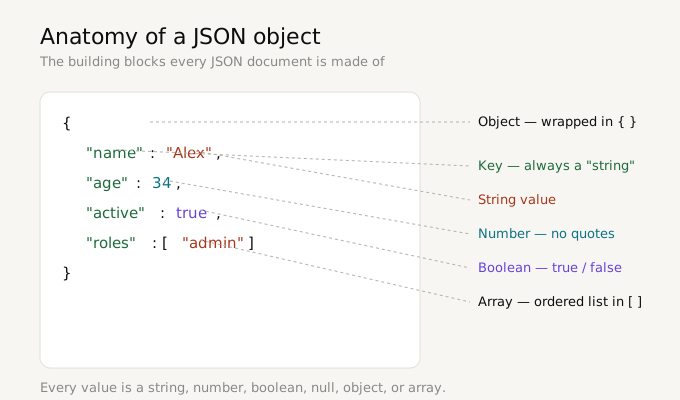
JSON stands for JavaScript Object Notation. Despite the name, it is not tied to JavaScript — nearly every programming language can read and write it. It was derived from JavaScript's object syntax in the early 2000s and standardised as a language-independent format.
JSON represents data using two basic structures:
- Objects: collections of key and value pairs, wrapped in curly braces
{ } - Arrays: ordered lists of values, wrapped in square brackets
[ ]
Values can be strings (in double quotes), numbers, booleans (true or false), null, or nested objects and arrays. Here is a simple example:
{
  "name": "Alex",
  "active": true,
  "roles": ["admin", "editor"],
  "profile": {
    "age": 34,
    "city": "London"
  }
}
That readable layout is what a JSON formatter produces. The same data could be transmitted as a single minified line, which is efficient for computers but painful for humans to read.
Beautify vs minify — what is the difference?
These are the two core operations of any JSON formatter, and they serve opposite purposes.
Beautify (also called format or pretty-print)
Beautifying adds line breaks and indentation so the structure is visually clear. Each level of nesting is indented, each key-value pair gets its own line. This is what you want when debugging, reviewing an API response, or trying to understand an unfamiliar data structure.
Minify (also called compact)
Minifying removes all unnecessary whitespace, collapsing the JSON into a single line. This is what you want for production: smaller payloads transmit faster and use less bandwidth. A minified API response might be 30 percent smaller than its beautified version. Here is the same data minified:
{"name":"Alex","active":true,"roles":["admin","editor"],"profile":{"age":34,"city":"London"}}Both versions represent identical data. The Virtual Text Tools formatter does both with a single click, and lets you choose your indent size (2 spaces, 4 spaces, or tabs) when beautifying.
The most common JSON errors and how to fix them
JSON is strict. A single misplaced character makes the entire document invalid. These are the errors I see most often, in rough order of frequency:
1. Trailing commas
This is by far the most common. JSON does not allow a comma after the last item in an object or array. JavaScript does, which is why developers trip over it constantly.
{
  "a": 1,
  "b": 2,   <-- this trailing comma is invalid
}
2. Single quotes instead of double quotes
JSON requires double quotes for both keys and string values. Single quotes are valid in JavaScript but not in JSON. {'name': 'Alex'} is invalid; {"name": "Alex"} is correct.
3. Unquoted keys
Every key must be wrapped in double quotes. {name: "Alex"} is invalid JavaScript-style shorthand; JSON requires {"name": "Alex"}.
4. Comments
JSON does not support comments of any kind — no // and no /* */. This surprises people coming from config files in other formats. If you need comments, you are probably looking for JSON5 or YAML instead.
5. Unclosed brackets or braces
Every { needs a matching } and every [ needs a matching ]. With deeply nested data this is easy to get wrong, which is exactly where a validator that points to the error location saves time.
The Virtual Text Tools validator does not just say "invalid" — it shows you the position of the error and the surrounding text, so you can jump straight to the problem instead of hunting through hundreds of lines.
Why browser-based JSON processing matters
This is the part most people overlook, and it is the reason I built this tool the way I did.
JSON very frequently contains sensitive data. An API response might include a user's email, a session token, an API key, or personal records. A configuration file might contain database credentials. When you paste that into a typical online JSON formatter, your data is sent to that company's server to be processed and sent back.
You usually have no idea what happens to it there. Is it logged? Cached? Retained? For developers working under NDAs, handling customer data, or subject to compliance requirements like GDPR or HIPAA, pasting real data into a random web tool is a genuine risk — and often a policy violation.
Virtual Text Tools processes JSON entirely in your browser using JavaScript's native JSON.parse() and JSON.stringify(). Your data never travels anywhere. You can confirm this by opening your browser's developer tools, going to the Network tab, and formatting some JSON — you will see zero outgoing requests containing your data. You could even disconnect from the internet and the tool would keep working.
A note on security
One subtle risk with JSON tools is how they display your formatted output. If a tool inserts your JSON directly into the page as HTML to apply syntax highlighting, and your JSON happens to contain HTML or script tags, that code could execute in your browser. This is a class of vulnerability called cross-site scripting.
The Virtual Text Tools formatter escapes every character of your input before it is ever displayed, then applies syntax highlighting to the already-safe text. Script tags and HTML in your JSON are shown as harmless text, never executed. It is a small detail, but it is the kind of thing that matters when you are pasting untrusted data.
How to format JSON — step by step
- Go to Virtual Text Tools and open the Code category, then JSON
- Paste your JSON into the input box
- Click Beautify to format it with indentation, or Minify to compact it
- Choose your indent size (2 spaces, 4 spaces, or tab) if beautifying
- If the JSON has an error, the status bar shows the exact position so you can fix it
- Click Copy to copy the result, or Validate only to check validity without reformatting
Common uses for a JSON formatter
- Debugging API responses: paste a raw response from your browser's network tab and read it clearly
- Editing config files: format
package.json,tsconfig.json, or app settings before editing - Validating before deploy: catch a syntax error locally before it breaks production
- Learning an API: beautify an unfamiliar response to understand its structure
- Minifying for production: compact JSON to reduce payload size
- Code review: format two versions consistently so you can compare them
Format your JSON free — nothing uploaded
Beautify, minify, validate. Syntax highlighting and error detection. Runs entirely in your browser.
Open JSON formatter →Frequently asked questions
Is it safe to format JSON online?
It depends on the tool. Many send your data to their servers, which is risky for JSON containing credentials or personal data. Virtual Text Tools processes everything in your browser, so your data is never uploaded or stored.
What is the difference between beautify and minify?
Beautify adds indentation to make JSON readable for humans. Minify strips whitespace to produce the smallest single-line version for production. Both represent identical data.
Why is my JSON invalid?
The most common causes are trailing commas, single quotes instead of double quotes, unquoted keys, comments (not allowed in JSON), and unclosed brackets. A validator that shows the error position helps you find the problem fast.
Is there a limit on JSON size?
There is no artificial limit. Because processing happens in your browser, the practical limit is your device's memory. Files up to several megabytes format without issue on a typical computer.
Does the formatter work offline?
Once the page has loaded, yes. All processing is local JavaScript, so you can disconnect from the internet and the formatter keeps working.