
Image Compressor
Runs entirely in your browser — nothing is uploaded. No limits, no signup.
By Alex Johnson — Image file sizes were one of those problems I kept running into when building web projects. A designer sends over a 4MB hero image, the client wants it on the homepage, and PageSpeed Insights immediately flags it as the number one performance issue. Most online compressors I tried uploaded the image to their servers — which felt wrong for client work. So I built one that runs entirely in your browser. Here is the complete guide to image compression and when to use each format.
Image compression is one of the highest-impact optimisations you can make for website performance. According to the HTTP Archive, images account for an average of 45% of a webpage's total byte weight as of 2024. A page that loads in 2 seconds instead of 5 seconds sees a 70% reduction in bounce rate on average (Google data). Compressing your images before uploading is the single fastest way to improve that number.
⚡ Quick answer: Upload your image to the compressor above, set quality with the slider, choose JPEG, PNG, or WEBP, and download. Your image never leaves your browser. Free, no account. Need other utilities? See all 19 tools.
Why image compression matters more than most people think
The numbers are consistently striking. Google's own research found that 53% of mobile users abandon a site that takes longer than 3 seconds to load. Image weight is the primary cause of slow load times for the vast majority of websites because images are typically the largest assets on any page.
For context on file sizes: a typical smartphone camera produces JPEG photos between 3MB and 8MB. A professional camera raw file can be 25MB or more. A website image serving at that size would cause even a fast broadband connection to stall visibly. The target for a hero image on a website is generally under 200KB. A product image thumbnail should be under 50KB. Compression gets you there.
Google's PageSpeed Insights — the tool Google uses to evaluate your site's performance before ranking it — explicitly checks for “Serve images in next-gen formats” and “Efficiently encode images.” These two flags directly relate to format choice and compression quality, and both affect your Core Web Vitals score.
JPEG vs PNG vs WEBP — which format to use
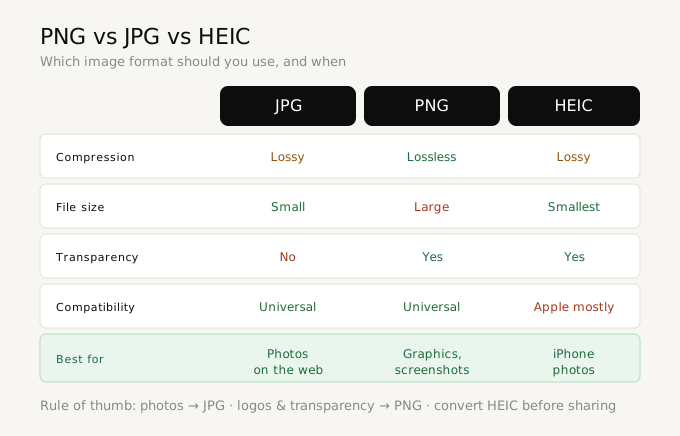
Choosing the right format before compressing is as important as the compression itself. Using PNG where JPEG would do is a common mistake that produces files 3-5x larger than necessary.
JPEG — the default for photographs
JPEG uses lossy compression — it permanently discards some image data to produce smaller files. The algorithm is optimised for photographs, where the human eye is less sensitive to the subtle quality loss. A photograph saved as JPEG at 80% quality is typically 60-80% smaller than the uncompressed original, with no visible quality difference at normal screen sizes.
Use JPEG for: photographs of people, places, and products; hero images and background images; any image where transparency is not needed.
Avoid JPEG for: logos, icons, screenshots with text, images with sharp edges or flat colors — JPEG's compression artifacts are visible on these.
PNG — lossless, with transparency
PNG uses lossless compression — all pixel data is preserved exactly. PNG files are larger than equivalent JPEG files for photographs, but PNG supports transparency (alpha channel) and handles sharp edges, text, and flat colors without artifacts.
Use PNG for: logos and icons, screenshots containing text, images requiring transparency, UI elements, anything where pixel-perfect quality is required.
Avoid PNG for: photographs on web pages where file size matters — the file size difference vs JPEG is significant (typically 3-5x larger for the same image).
WEBP — the modern choice
WEBP was developed by Google and released in 2010. It supports both lossy and lossless compression, and typically produces files 25-35% smaller than equivalent JPEG at the same visual quality, and 26% smaller than PNG for lossless content. As of 2024, WEBP is supported by all major browsers including Chrome, Firefox, Safari (since iOS 14), and Edge.
Use WEBP for: any web image where broad browser support is acceptable and smaller file sizes are important. WEBP is becoming the default recommendation for new web projects.
Avoid WEBP for: images that need to open in non-browser software (Office, older image editors) or be sent to people who might not use a modern browser.
What quality setting should you use?
The quality slider in the Virtual Text Tools image compressor controls how aggressively the algorithm discards data. Higher quality means larger files and less visual change. Lower quality means smaller files and more visible compression.
Industry-standard recommendations by use case:
- Website hero images and featured photos: 75-85% JPEG or WEBP. Google's own documentation recommends 85% as the default. The file size reduction from 100% to 80% is dramatic (often 60-70% smaller) with no visible quality loss.
- Product images and portfolio photos: 80-90%. Slightly higher quality since users inspect these closely.
- Thumbnails and previews: 60-75%. At small display sizes, lower quality is barely perceptible.
- Images for email: 70-80%. Email clients impose size limits; aggressive compression helps delivery.
- Social media uploads: 80-90%. Platforms recompress on their end anyway, so starting at high quality gives the algorithm more to work with.
- Images for print (PDF, document): 90-100%. Print requires higher fidelity; file size matters less.
How to compress an image online — step by step
- Go to Virtual Text Tools and click the Convert category, then Compress
- Drag and drop your JPEG, PNG, or WEBP image, or click to browse
- Your original image appears on the left with its dimensions and file size
- Adjust the Quality slider — the compressed preview updates in real time
- Choose your output format: JPEG (smallest, photographs), PNG (lossless), or WEBP (modern, very small)
- The green badge shows how much smaller the compressed file is compared to the original
- Click Download to save the compressed file
Compression vs conversion — understanding the difference
Compression and format conversion are related but different operations. Compression reduces the data within a format (a JPEG at 80% quality vs 100% quality). Conversion changes the format itself (JPEG to PNG, or PNG to WEBP).
Often the highest-impact step is changing format rather than adjusting quality. Converting a 2MB PNG logo to WEBP at 90% quality might produce a 200KB file — a 90% reduction — while adjusting JPEG quality from 100% to 80% might only get you to 600KB. For web use, format matters as much as quality setting.
Privacy — why browser-based compression matters
Most popular image compressors — TinyPNG, iLoveIMG, Squoosh (partially) — upload your image to their servers to process it. For most personal photos this is fine. But for:
- Client work under NDA
- Screenshots of internal systems or dashboards
- Product images before a public launch
- Images of ID documents or sensitive personal materials
...uploading to a third-party server is a real risk. Virtual Text Tools compresses images using the HTML5 Canvas API — the image is loaded into browser memory, processed, and exported without any network request containing your image data. You can verify this in your browser's developer tools (Network tab): zero outgoing image data.
Compress your image free — no account needed
JPEG, PNG, WEBP. Quality slider. Live preview. Your images stay in your browser.
Open image compressor →Frequently asked questions
Does compressing an image reduce quality?
JPEG and WEBP compression is lossy — some data is permanently discarded. At 80% quality, most people cannot see the difference at normal screen sizes. PNG compression is lossless — no quality is ever lost, but file size reduction is smaller.
What is the best quality setting for website images?
75-85% for photographs. Google's own PageSpeed tools recommend 85% JPEG quality as a sensible default. At 80%, a typical photo compresses to 20-30% of its original size with no visible quality loss at standard screen resolutions.
Is it safe to compress images with Virtual Text Tools?
Yes. All compression happens locally in your browser using the Canvas API. Your images are never uploaded to any server and never leave your device.
What is the difference between JPEG and WEBP compression?
Both use lossy compression algorithms. WEBP is more efficient — it typically produces files 25-35% smaller than JPEG at the same visual quality. WEBP is supported by all modern browsers but may not open in older software like Microsoft Office.
Can I compress a PNG image?
Yes. You can compress a PNG in two ways: PNG lossless compression (reduces file size without any quality loss, but the reduction is modest), or converting to JPEG or WEBP (significant size reduction but changes format and loses transparency support).