
HEIC → PNG Converter
Runs entirely in your browser — nothing is uploaded. No limits, no signup.
By Alex Johnson — I built the HEIC to PNG converter for Virtual Text Tools after a friend sent me iPhone photos I could not open on my Windows machine. Every converter I found online uploaded the photos to a server — which felt wrong for personal photos. The Virtual Text Tools converter runs entirely in your browser using open-source JavaScript. Your photos never leave your device.
Every iPhone running iOS 11 or later saves photos in HEIC format by default. HEIC produces half the file size of JPEG at the same quality — which is great for storage but creates an immediate problem: most Windows PCs, Android devices, and non-Apple software cannot open HEIC files natively.
The standard solution is converting HEIC to PNG or JPEG. But most free online HEIC converters upload your photos to their servers — a significant privacy concern for personal photos, work screenshots, or any image containing sensitive information. Virtual Text Tools converts HEIC files entirely in your browser, with no upload and no account required.
⚡ Quick answer: Drag and drop up to 5 HEIC photos into the converter above, choose JPG (smaller, the default) or PNG (lossless), and download. Your photos never leave your device. Free, no signup. Need other utilities? See all 19 tools.
What is HEIC and why does Apple use it?
HEIC stands for High Efficiency Image Container. It is based on the HEIF (High Efficiency Image Format) standard, which uses the HEVC (H.265) video codec to compress still images. Apple adopted HEIC as the default photo format with iOS 11 in 2017 and macOS High Sierra.
The reason Apple switched to HEIC is storage efficiency. A HEIC file is approximately 50% smaller than a JPEG of equivalent quality. For a phone with 12-megapixel cameras shooting hundreds of photos, this makes a significant difference in how many photos fit on device storage. A photo that would be 3MB as JPEG is typically around 1.5MB as HEIC.
As of 2024, Apple has over 1.4 billion active devices worldwide. With iPhones being the most popular smartphone in the US (holding over 55% market share according to Statista), the volume of HEIC photos being created daily is enormous — and most of them need to be converted at some point for use outside of Apple's ecosystem.
Why HEIC files won't open on Windows
Windows does not include HEIC support by default because HEVC decoding is a licensed technology — Microsoft charges a licensing fee, which is why it is not bundled into Windows by default.
There are three ways to open HEIC on Windows:
- Microsoft Store extensions: The free "HEIF Image Extensions" app adds HEIC support to Windows Photos and File Explorer thumbnails. Combined with the "HEVC Video Extensions" ($0.99), this gives full HEIC support across Windows apps.
- Convert to PNG or JPEG: The most universal solution. A converted PNG file opens in every Windows application without any extensions or dependencies.
- Use Apple's iCloud Photos: Photos uploaded to iCloud can be downloaded as JPEG automatically from iCloud.com on Windows.
HEIC vs PNG vs JPEG — which format should you use?
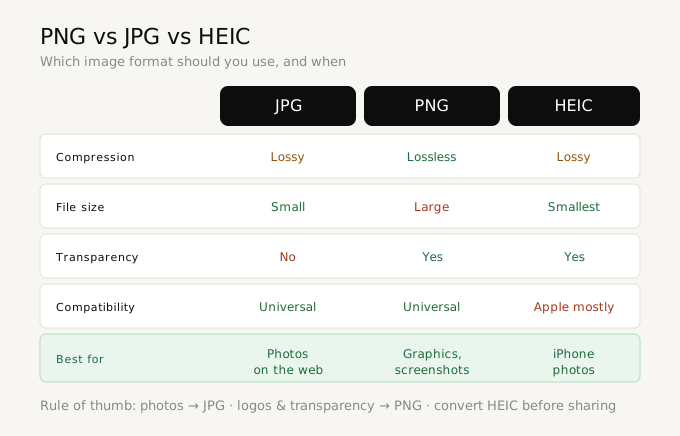
Understanding the three formats helps you choose the right output:
- HEIC: Best compression, excellent quality. Works natively on Apple devices and modern Android. Does not work on older Windows without extensions. Not supported by most web browsers for direct display. Use when staying within the Apple ecosystem.
- PNG: Lossless compression — no quality loss ever. Larger file sizes than HEIC or JPEG for photographs. Supports transparency. Universal compatibility — every device, browser, and application opens PNG. Best choice when quality preservation matters and file size is secondary.
- JPEG: Lossy compression — small file size but some quality loss on each save. No transparency support. Universal compatibility. Best for photographs shared on the web, social media, or email where file size matters.
For most HEIC conversion use cases — sharing with non-Apple users, uploading to websites, using in documents — JPEG is the more practical choice for file size reasons. But for archiving, editing, or any case where you need to retain every pixel exactly, PNG is the correct output format.
The privacy problem with most HEIC converters
Search for "HEIC to PNG converter" and the top results are mostly server-based tools. This means your photo is uploaded to their servers, converted, and then available for download. The privacy implications depend on the tool's data retention policy — some delete files immediately, others keep them for 24 hours, others have vague policies.
For personal photos, this may be acceptable. But for:
- Work screenshots containing confidential information
- Photos of documents, contracts, or ID cards
- Images shared under NDA with clients
- Any photo where the content is sensitive
...uploading to a third-party server is a real risk. Virtual Text Tools converts HEIC files using the heic2any open-source JavaScript library, which runs entirely in your browser. The file is read into browser memory, decoded, and exported as PNG — all without any network request containing your image data. You can verify this using your browser's developer tools (Network tab) while converting: you will see zero outgoing requests containing your image.
How to convert HEIC to PNG or JPG online — step by step
- Go to Virtual Text Tools and open the HEIC converter
- Choose your output format: JPG (smaller files, the default and best choice for photos) or PNG (lossless, larger files). For JPG you can set the quality with the slider
- Drag and drop up to 5 .heic or .heif files onto the upload area — or click to browse
- The conversion begins automatically. A status message shows progress as each photo is decoded — large photos may take a few seconds
- Each converted photo appears in a list with a thumbnail, its dimensions, and its file size. JPG output shows how much smaller it is than the original
- Click the download button on any photo to save it, or use Download all to save every converted photo at once
- Click Convert more to reset and convert a different batch
HEIC conversion on different devices
Converting HEIC on iPhone or iPad
You can avoid HEIC conversion entirely by changing your iPhone's camera settings: go to Settings → Camera → Formats and select "Most Compatible" instead of "High Efficiency." This makes your iPhone save photos as JPEG from that point forward. For existing HEIC photos, use Virtual Text Tools in your mobile browser — it works on iOS Safari.
Converting HEIC on Mac
Mac natively supports HEIC in Preview. To convert: open the HEIC file in Preview, choose File → Export, select PNG or JPEG from the Format dropdown, and save. For batch conversion, use Automator or the command line. Virtual Text Tools also works in Safari and Chrome on Mac.
Converting HEIC on Windows
Without the Microsoft Store extension, Windows cannot open HEIC files. Virtual Text Tools is the fastest solution: open any modern browser (Chrome, Firefox, Edge), go to virtualtexttools.com, and convert the HEIC file without installing anything.
Converting HEIC on Android
Android 12 and later includes native HEIC support in Google Photos. For older Android or other apps, Virtual Text Tools works in Chrome for Android — drag and drop is supported on Android Chrome as well.
Frequently asked questions
Why are my iPhone photos in HEIC format?
Apple switched to HEIC as the default photo format with iOS 11 (2017) because it produces files approximately 50% smaller than JPEG at the same quality. To switch back to JPEG, go to Settings → Camera → Formats and select Most Compatible.
Does converting HEIC to PNG reduce quality?
It depends on the format you choose. PNG uses lossless compression — all pixel data from the HEIC original is preserved exactly, though the file will be larger. JPG uses lossy compression with an adjustable quality slider: at 85% (the default) the quality difference is invisible for most photos while the file is dramatically smaller, often smaller than the original HEIC. For photos, JPG is usually the better choice; for images where you need perfect pixel preservation, choose PNG.
Can I convert multiple HEIC files at once?
Yes. The Virtual Text Tools converter handles up to 5 HEIC photos at once — drop them all in, and each is converted and listed separately with its own download button, plus a Download all option. For converting very large numbers of files, Mac users can use Automator, Windows users can use the Photos app with the HEIF extension installed, and developers can use the command-line tool ImageMagick.
Why does my HEIC file take a few seconds to convert?
HEIC uses HEVC video codec compression, which is computationally intensive to decode compared to JPEG. Decoding happens in your browser using JavaScript, which is slower than native code. A typical 12-megapixel iPhone photo converts in 2-5 seconds depending on your device's processing speed.