
By Alex Johnson — Copy-pasting text from PDFs has been the bane of my professional life for years. Every time I pull text from a report or contract, I end up with double spaces between words, invisible trailing spaces, and blank lines multiplying everywhere. I built the whitespace cleaner in Virtual Text Tools specifically to fix these problems in one click. Here is everything you need to know about cleaning up messy whitespace.
Pasting text from PDFs, emails, spreadsheets, or web pages almost always introduces unwanted whitespace. Double spaces appear between words. Blank lines multiply between paragraphs. Trailing spaces hide at the end of lines where you can't see them. Tab characters cause misalignment in editors that expect spaces.
A whitespace cleaner fixes all of these in seconds without manual find-and-replace or installing software.
⚡ Quick answer: Paste your text into the cleaner above, click the mode you need, and copy the result. Free, no signup, instant. Need other utilities? See all 19 tools.
Why extra spaces are so common — and so invisible
Extra whitespace is one of the most prevalent text quality problems because it is largely invisible to the human eye but causes real problems for code, databases, and formatted documents. A double space between words looks nearly identical to a single space at normal reading sizes. Trailing spaces are completely invisible. Tab characters might look like spaces until they cause alignment issues.
Over 80% of business documents are stored as PDFs (IDC research). Every time someone copies text from a PDF, they inherit whatever whitespace the PDF renderer inserts during extraction — often inconsistently. Emails add invisible non-breaking spaces (Unicode U+00A0) that look identical to regular spaces but break string matching in code. Database exports pad fields with trailing spaces to fixed column widths. These are not edge cases — they are everyday occurrences for anyone who works with text professionally.
The 6 whitespace cleaning modes — and when to use each
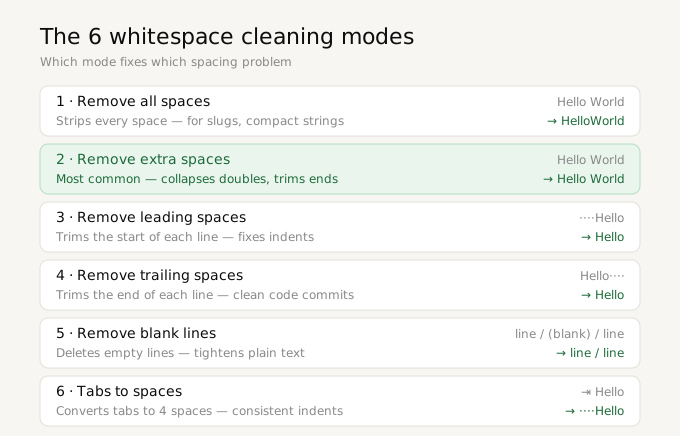
1. Remove all spaces
Removes every space character from the text entirely. Words run together without any separator. This is rarely what you want for readable text but is useful for generating URL slugs before adding hyphens, creating compact string representations for comparison, or testing string processing code that should handle spacing-free input.
Example: "Hello World Test" becomes "HelloWorldTest"
2. Remove extra spaces
The most commonly used mode. Collapses any sequence of two or more consecutive spaces into a single space, and trims leading and trailing spaces from each line. This is the correct fix for double-spaced text from PDFs and copied web content.
Example: "Hello World" becomes "Hello World"
This mode is equivalent to running the regex /\s+/g replaced with a single space on each line individually, which is the standard approach in Python (re.sub(r' +', ' ', text)) and JavaScript (text.replace(/ +/g, ' ')).
3. Remove leading spaces
Strips spaces from the beginning of each line only. Use when text has been accidentally indented — a common result of copying from bulleted lists, code blocks, or indented paragraphs in Word documents. Preserves all other spacing including internal double spaces.
4. Remove trailing spaces
Strips spaces from the end of each line. This is critical for developers — Python's PEP 8 style guide, JavaScript's ESLint, and virtually every linting tool treats trailing whitespace as a code quality error. Git also marks trailing whitespace in diffs with red highlighting, creating noisy code reviews. Running your code through a trailing space remover before committing is a clean code practice.
5. Remove blank lines
Removes all empty lines from the text while preserving content lines. Use when converting formatted documents to plain text for import into CMS systems, cleaning up code that has excessive blank lines, or tightening up exported database content where every record was separated by an empty line.
6. Tabs to spaces
Converts all tab characters (Unicode U+0009) to four spaces. Essential when moving code between editors with different indentation settings — the long-running tabs vs. spaces debate has real practical consequences when code is shared across environments. Python's PEP 8 explicitly recommends spaces over tabs. Go's official formatter (gofmt) enforces tabs. When moving Python code written in a tab-based editor, converting tabs to spaces prevents IndentationError.
Non-breaking spaces — the invisible problem
Beyond regular whitespace, a common invisible problem is the non-breaking space (Unicode U+00A0). It looks identical to a regular space at all font sizes but behaves differently in several important ways:
- It prevents line breaks between the words it connects, which can cause text overflow in responsive layouts
- It does not match the regular space character in string comparisons and database queries, causing lookup failures
- It is inserted automatically by Microsoft Word's autocorrect in certain contexts (for example, before a percent sign or after an opening quotation mark in some language settings)
- HTML entities like
render as non-breaking spaces when copied from HTML into plain text editors
The Remove extra spaces mode in Virtual Text Tools handles both regular spaces and non-breaking spaces, collapsing them together into clean single spaces.
Whitespace cleaning in other tools — a comparison
For context, here is how the same whitespace problems are handled in other environments:
- Microsoft Word: Find and Replace with wildcards can collapse multiple spaces. Find
<([ ]{2,})>and replace with a single space. Tedious to configure and must be run repeatedly until no double spaces remain. - Google Sheets TRIM(): The TRIM function removes leading, trailing, and extra internal spaces from cell values — but only one cell at a time unless applied across a column with a formula.
- VS Code: The "Trim Trailing Whitespace" command handles trailing spaces. There is no built-in command for collapsing multiple internal spaces.
- Python:
text.strip()for leading/trailing,re.sub(r' +', ' ', text)for extra internal spaces,text.replace('\t', ' ')for tabs. Fast but requires a development environment. - Virtual Text Tools: All six scenarios in one interface, no setup, works in the browser on any device.
Step-by-step guide to cleaning text online
- Go to Virtual Text Tools and click the Spaces tab in the navigation
- Paste your text into the left input box — any length is supported
- Click the cleaning mode that matches your problem
- The cleaned result appears instantly in the right output box
- Click Copy result to copy the cleaned text to your clipboard
- Use the Swap button to move the result back to the input if you need to apply a second cleaning mode
You can chain multiple modes: for example, first remove trailing spaces, then swap and remove blank lines. Each pass takes less than a second regardless of text length.
Frequently asked questions
How do I remove double spaces from text online?
Paste your text into Virtual Text Tools and click Remove extra spaces. This collapses all double (and triple, quadruple, etc.) spaces into single spaces across the entire document in one click. Free and no signup required.
Why does text from a PDF have extra spaces?
PDFs store text as positioned characters rather than a continuous string. When you copy and paste from a PDF, the reading software reconstructs word spacing from the character positions, often inserting extra spaces. A whitespace cleaner removes these artifacts in seconds.
What is trailing whitespace and why does it matter in code?
Trailing whitespace is invisible spaces at the end of a line. In code, it causes linting errors, string comparison failures, and noisy Git diffs. Most style guides and linters require its removal. The Remove trailing spaces mode in Virtual Text Tools handles this instantly.
Is the whitespace cleaner private — does it send my text to a server?
No. All processing happens locally in your browser using JavaScript. Your text never leaves your device and is never sent to any server.
How do I remove blank lines from text online?
Go to Virtual Text Tools, click the Spaces tab, and click Remove blank lines. All empty lines are removed while content lines are preserved — useful for documents that add a blank line between every paragraph, or database exports with empty rows. Free and no signup required.
How do I convert tabs to spaces online?
Use the Tabs to spaces mode in the Spaces tab. It converts every tab character (U+0009) to four spaces — the standard fix when moving code between editors with different indentation settings. Python's PEP 8 recommends spaces, while Go's gofmt enforces tabs, so conversion in both directions is common.