
By Alex Johnson — I regularly work with keyword lists that come out of research tools in completely random order. Opening a spreadsheet to sort 200 items felt like too many steps for such a simple task. The list sorter on Virtual Text Tools was born out of that frustration — paste, click, done. Here's everything you can do with it.
Sorting a list manually is one of those tasks that seems quick until you're staring at 200 unordered items. Whether it's a list of names, URLs, keywords, product names, or random items — an online list sorter handles it in under a second with no spreadsheet required.
⚡ Quick answer: Paste your list (one item per line) into the sorter above, pick your sort mode, and copy the result. Done instantly. Need other utilities? See all 19 tools.
When do you need to sort a list online?
Sorting is one of the most fundamental operations in computing. Donald Knuth, in his landmark series The Art of Computer Programming, estimated that more than 25% of all CPU time on early computers was spent on sorting operations. Today, email marketers manage lists averaging 10,000 to 100,000 subscribers, keyword researchers work with exports of thousands of terms, and data analysts routinely clean lists of tens of thousands of records — all tasks where a fast online sorter saves significant manual effort.
- Keyword research — sort hundreds of keywords alphabetically or by length for easier review
- Email lists — alphabetize contact names for cleaner exports
- URL lists — sort crawl exports or sitemaps for easier analysis
- To-do lists — reorder tasks by priority or name
- Data cleanup — sort before deduplicating to spot patterns faster
- Randomization — shuffle a list for random assignment, giveaways, or testing
The 7 sort modes explained
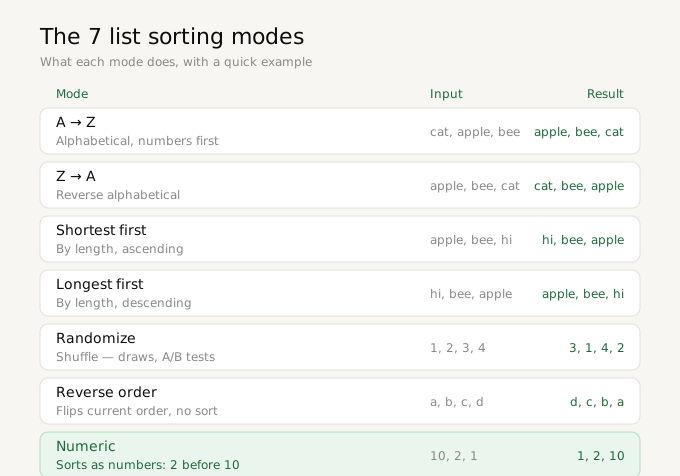
A → Z (alphabetical)
Sorts items in standard alphabetical order. Numbers come before letters. Case-insensitive by default.
Z → A (reverse alphabetical)
Sorts items in reverse alphabetical order. Useful for finding items at the end of an alphabet-sorted list.
Shortest first
Sorts by character length, shortest items at the top. Great for reviewing keyword lists where short-tail terms are often higher value.
Longest first
Sorts by character length, longest items at the top. Useful for identifying long-tail keywords or finding verbose entries in a list.
Randomize
Shuffles the list in a random order. Uses JavaScript's Math.random() — useful for random assignment, A/B testing, or picking random winners from a list.
Reverse order
Flips the list upside down — the last item becomes first and vice versa. Doesn't sort, just reverses the current order.
Numeric
Sorts items as numbers rather than strings. This prevents the common problem where "10" sorts before "2" in alphabetical mode (because "1" comes before "2"). Use this for numbered lists.
Sorting strategies for specific use cases
Different sorting modes serve different real-world needs. Understanding which mode to use for your specific situation saves time and produces more useful results.
Alphabetical sorting for keyword research
Alphabetical A-Z sorting is the default choice for keyword lists because it makes scanning for related terms faster. Keywords starting with the same word or prefix cluster together, revealing topic groups and content gaps that are harder to spot in a randomly ordered list. Most SEO professionals sort and deduplicate their keyword exports before doing any analysis.
Shortest first for headline and title work
When working with a list of headline variants or title options, sorting by length (shortest first) helps you quickly identify the most concise options. Shorter headlines typically perform better in search results and social media since they are fully visible without truncation. Google truncates title tags at approximately 60 characters in search results — sorting by length helps you spot which titles need trimming.
Randomization for fair assignment and testing
Randomizing a list has legitimate uses beyond novelty. When assigning tasks fairly among team members, randomly shuffling a list and assigning in order avoids favoritism. A/B testing groups, focus group assignments, contest winner selection, classroom seating arrangements — all benefit from genuinely random ordering. The Virtual Text Tools randomizer uses JavaScript's Math.random(), which is sufficient for everyday fairness applications.
Numeric sorting for version numbers and ranked lists
Numeric sorting solves a specific and frustrating problem: alphabetical sort treats numbers as text, so 10 sorts before 2 (because "1" comes before "2" alphabetically). This affects version number lists, numbered item lists, ranked results, and any list where the entries begin with numbers. Numeric sort correctly orders 1, 2, 3, 10, 20, 100 instead of the alphabetical 1, 10, 100, 2, 20, 3.
Combining sort with deduplicate
The most powerful workflow is to deduplicate first, then sort — or use the built-in "Dedupe + sort" option in the Duplicate Line Remover. Sorting before deduplication can sometimes make duplicates more visible for manual review, but running the tools in the deduplicate-then-sort order gives you the cleanest final output in one pass.
Sorting large lists — performance considerations
Since the List Sorter runs in your browser using JavaScript, sorting speed depends on your device rather than a server. In practice:
- Lists up to 10,000 items sort instantly on any modern device
- Lists of 50,000–100,000 items may take 1–3 seconds on older hardware
- Lists over 500,000 items may cause browser slowness and are better handled by command-line tools
JavaScript's built-in Array.sort() uses a combination of TimSort (for large arrays) and insertion sort (for small ones), matching the algorithm used by Python's sort() — one of the most efficient general-purpose sorting algorithms available. For everyday list sizes, performance is never a concern.
How to use it
- Go to Virtual Text Tools and click the Sorter tab
- Paste your list in the left box — one item per line
- Click any sort button
- The sorted result appears on the right — click Copy to grab it
- Use Swap to move the result back to input for further sorting or deduplication
Frequently asked questions
Does it remove duplicates?
No — sorting and deduplication are separate tools. For best results, sort your list first, then run it through the Duplicate Line Remover to clean up repeats.
Is the sort case-sensitive?
Alphabetical sorting follows standard locale comparison which is case-insensitive for most Latin characters. Uppercase letters may sort slightly differently from lowercase depending on the browser.
What counts as one item?
Each line break is treated as one item separator. One item per line is the expected format. Blank lines are ignored.
Is there an item limit?
No limit — everything runs in your browser so performance depends on your device. Thousands of items sort instantly on any modern computer.